A USB stick is how most people install Linux Lite. It is faster than a DVD, reusable, and the same stick can also run the live session for testing before you install. This guide covers the whole job: making the bootable USB, booting from it, and — if you want to keep Windows — installing Linux Lite alongside Windows 11.
The short version: write the ISO to the stick, boot from it, and install from the live session.
No Windows 11 dual-boot guide for Linux Lite existed anywhere before this one. The older guides cover Windows 10, 8.1 and 8. The steps here are for Windows 11, on the current Linux Lite 8.2.
If you are on Windows 10, the steps are the same. The dual-boot process is identical, and only the Windows version differs.
Part 1: Install Linux Lite from USB
What You Need
You need the Linux Lite ISO file (about 2.4 GB, from the official Linux Lite site), a USB stick of at least 4 GB, and a computer to write the stick on. A USB 3.0 stick is faster than USB 2.0, both for writing and for booting, but any stick of 4 GB or more works.
The finished stick is a bootable drive: the computer starts from it, and the installer runs from the live session.
Writing an ISO erases the selected USB drive, so move any files you need off the stick first. There is no way to recover files from a stick after it has been written.
Make the Bootable USB with Rufus (Windows)
Rufus is the most popular tool for this job on Windows, and it is free.
- Download Rufus and open it — it needs no installation.
- Insert the USB stick. Rufus should select it automatically. Check the size and label before going further.
- Click Select and choose the Linux Lite ISO file.
- Leave the partition scheme and target system as Rufus suggests them for your computer — it reads the ISO and picks the right settings.
- Click Start. Rufus warns you the stick will be erased. Confirm, and wait for it to finish before removing the stick.
Make the Bootable USB with Etcher (Windows, Mac or Linux)
Etcher works on Windows, Mac and Linux, and it is the simplest of the tools.
- Insert the USB stick.
- Open Etcher and select the Linux Lite ISO.
- Select the USB drive only after checking its size and label.
- Click Flash and wait for the tool to finish and verify the write before removing the drive.
Etcher's three steps — select image, select drive, flash — leave little room for error. That is why many guides recommend it for beginners.
Or Use Ventoy for a Multi-Boot Stick
If you want a reusable multi-ISO drive, Ventoy lets you put several ISO files on one stick and pick one at boot. Install Ventoy on the stick once, then copy ISO files onto it like ordinary files. Verify its device-selection screen with the same care as Rufus or Etcher — picking the wrong drive erases the wrong device.
Boot from the USB
Restart the computer with the USB drive attached, then open its one-time boot menu or firmware settings with the key shown during startup or in the device manual. Common keys are F12, F10, F8, Esc and Del — it depends on the manufacturer.
Select the USB drive as the boot device. The computer starts the Linux Lite live session from the stick. Nothing on the hard drive changes yet.
If the computer ignores the USB stick and boots Windows, open the boot menu again and check the stick is listed. Try a different USB port — some old machines only boot from USB 2.0 ports. If the stick still does not appear, recreate it.
Try the Live Session First
Start the live session before committing to an install. It lets you confirm that the display, keyboard, network, storage devices and basic input hardware are detected while the existing disk is unchanged.
Browse the web, open LibreOffice, and check that Wi-Fi and sound work. If something does not work in the live session, it will not work after installing either — find out now, not later.
When you are ready, click "Install Linux Lite" on the live desktop and follow the installer. The full step-by-step install is covered in the install guide.
Part 2: Dual-Boot Linux Lite with Windows 11
Dual-booting means two operating systems share one computer. Each time you start the machine, a boot menu asks which one to start: Windows 11 or Linux Lite. Your files in each system stay separate.
How Dual-Boot Works
When you install Linux Lite alongside Windows, the installer shrinks the Windows partition to make room, installs Linux Lite in the freed space, and sets up a boot menu (GRUB) that lists both systems. Windows is untouched apart from the smaller partition. Linux Lite lives in its own space.
You need at least 40 GB of free space for Linux Lite, on top of what Windows needs. More is better: 60 GB or more gives both systems room for updates and files.
Before You Start: Back Up Windows
Back up your important Windows files before you change anything on the disk. Shrinking a partition is normally safe, but a power cut or a mistake during partitioning can destroy data. Copy your documents, photos and anything else you cannot lose to an external drive first.
Also make a Windows recovery USB if you do not already have one. If anything ever goes wrong with the boot menu, it is how you repair Windows.
Turn Off Fast Startup in Windows 11
Windows 11's Fast Startup feature hibernates the system instead of shutting it down fully. That locks the Windows partition, and the Linux Lite installer cannot resize a locked partition.
Open the Windows Control Panel, go to Power Options, choose what the power buttons do, and turn off Fast Startup. Then shut Windows down fully — do not restart it, shut it down — before booting from the USB stick.
Disable Secure Boot
The official Linux Lite download page says to disable Secure Boot before installation. Linux Lite does not support Secure Boot, and the installer will ask for it to be off.
Restart the computer, open the firmware settings, and disable Secure Boot. The setting is usually under Security or Boot in the firmware menus. Leave every other firmware setting alone unless you know what it does.
Note that disabling Secure Boot does not harm Windows 11 on a dual-boot machine — Windows starts normally without it. Windows 11's installer requires Secure Boot to be available, but an already-installed Windows 11 runs fine with it off.
Install Alongside Windows
Boot from the USB stick and start the live session. Check that the hardware works, then click "Install Linux Lite" on the live desktop.
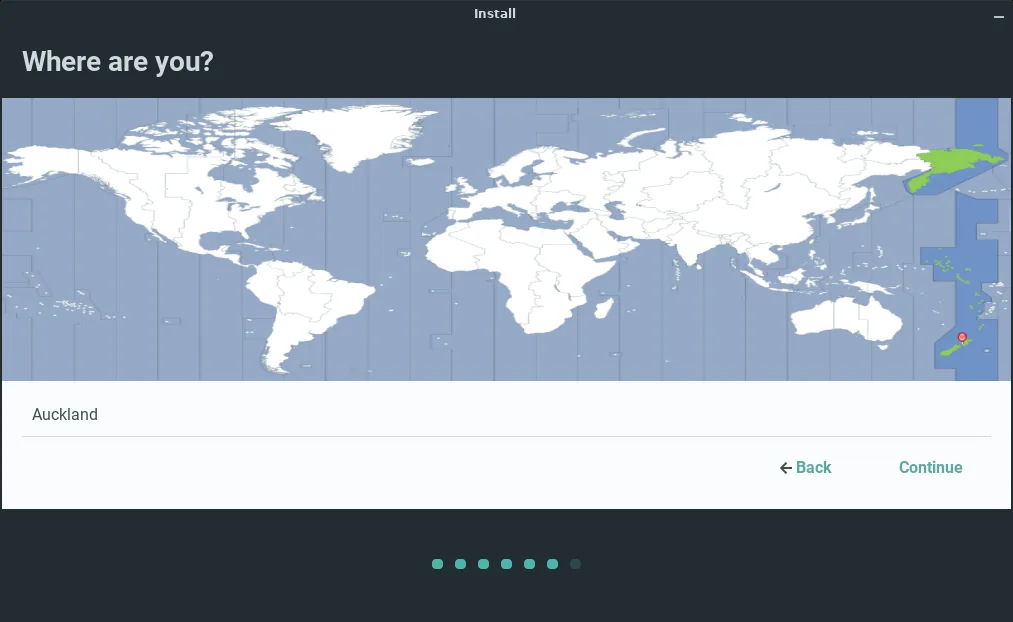
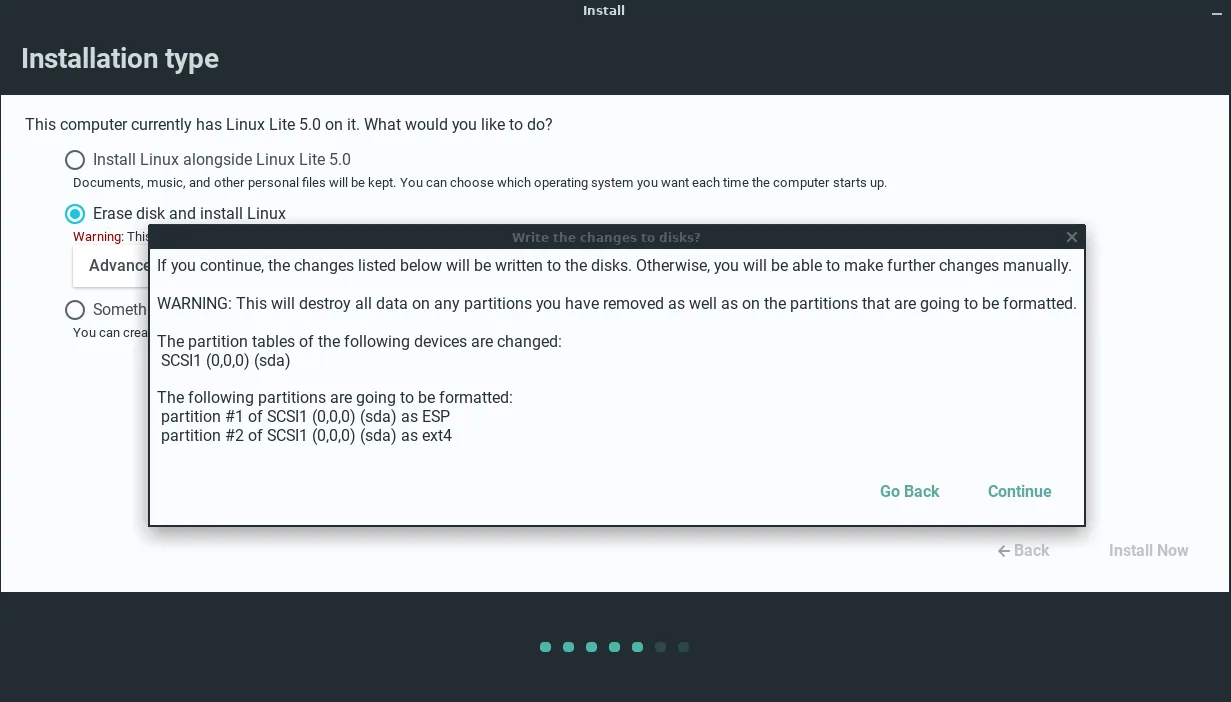
In the installer, pick your language, timezone and keyboard layout. On the disk screen, choose the option to install Linux Lite alongside Windows. Do not choose the option to erase the disk — that deletes Windows.
The installer shows how much space each system gets. Give Linux Lite at least 40 GB. If the slider lets you, give it more. Confirm the layout, then continue with the user account setup.
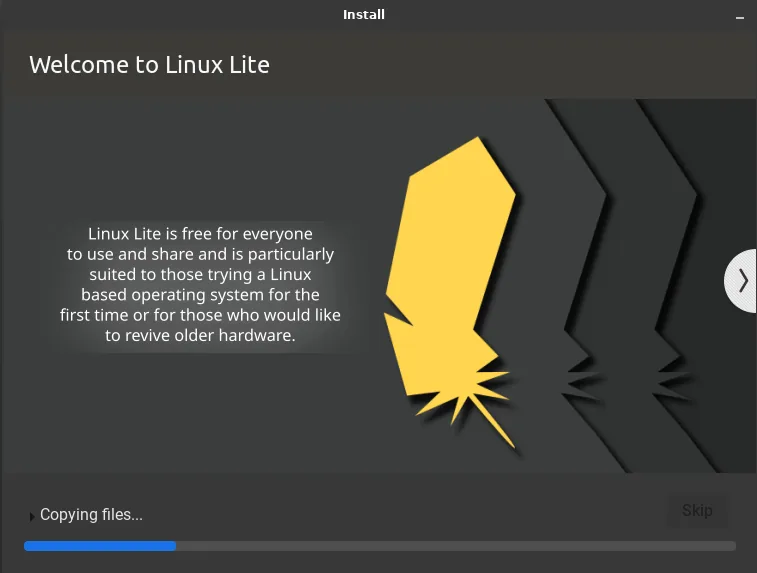
The installer copies the files, then reboots. Remove the USB stick when asked.
The Boot Menu: Choosing Your System
After installation, the computer starts at a boot menu each time it powers on. It lists Linux Lite first and Windows 11 below it. Use the arrow keys to pick one and press Enter. If you do nothing, it starts Linux Lite after a few seconds.
That menu is GRUB, the Linux boot loader. It is the same menu that appears on any dual-boot Linux install. You can change the default and the timeout later, but the default — Linux Lite first, a few seconds to choose — is fine to start with.
Switching Between Windows and Linux Lite
Switching systems means restarting the computer. There is no way to run both at once on a dual-boot machine — you pick one at the boot menu, use it, and restart to use the other.
Your Windows files and your Linux Lite files live on separate partitions. Linux Lite can read files from the Windows partition, so you can open a Windows document from Linux Lite. Windows cannot read the Linux Lite partition without extra software, so treat the two systems' files as separate homes.
Removing Linux Lite Later
If you ever want to remove Linux Lite and keep only Windows, do not just delete the Linux Lite partition — that breaks the boot menu and the computer will not start. The safe order is: restore the Windows boot loader first (from a Windows recovery USB), then delete the Linux Lite partition and extend Windows back into the freed space.
Troubleshooting
The computer boots straight to Windows, no boot menu.
The boot order still points at Windows. Open the firmware settings and move the Linux Lite entry to the top of the boot order, or use the one-time boot menu to start Linux Lite.
The installer cannot shrink the Windows partition.
Fast Startup is probably still on, locking the partition. Go back to Windows, turn Fast Startup off, shut down fully, and try again. Also run Windows' own disk check and defragmentation first — a messy Windows partition resists shrinking.
The installer says Secure Boot is enabled.
Restart, open the firmware settings, and disable Secure Boot. The installer will not continue until it is off.
Windows time is wrong after using Linux Lite.
Linux and Windows store the hardware clock differently. Linux Lite uses UTC; Windows uses local time. The clock jumps each time you switch systems. The fix is a one-line setting in either system — set Linux Lite to use local time, or set Windows to use UTC.
No boot menu after a Windows update.
A major Windows update can overwrite the boot loader. Boot from a Linux Lite USB stick, use its boot repair function, and the menu comes back. This is rare, but it is the most common dual-boot problem, and it is fixable in minutes.
The USB stick does not appear in the boot menu.
Try a different USB port, recreate the stick, and check that Secure Boot is off. Some machines hide USB boot options until Secure Boot is disabled.
FAQs
Can I dual-boot Linux Lite with Windows 11?
Yes. Install Linux Lite alongside Windows 11 from the USB installer. Turn off Fast Startup first, disable Secure Boot, and give Linux Lite at least 40 GB of space.
Will dual-booting delete my Windows files?
No, if you choose the "install alongside" option. It shrinks the Windows partition and installs Linux Lite in the freed space. Back up your files first anyway.
How much space does Linux Lite need in a dual-boot?
At least 40 GB. More is better — 60 GB or more gives both systems room for updates and files.
Can I switch between Windows and Linux Lite without restarting?
No. Dual-booting means one system at a time; you pick one at the boot menu and restart to switch.
Does disabling Secure Boot harm Windows 11?
No. An already-installed Windows 11 runs normally with Secure Boot off. The installer only needs it to be off for Linux Lite.
What is the difference between Rufus and Etcher?
Both write the ISO to a USB stick. Rufus runs on Windows and offers more options. Etcher runs on Windows, Mac and Linux and is simpler — three steps. Either works.
Conclusion
A USB stick and twenty minutes are all it takes to install Linux Lite, and you can keep Windows 11 alongside it. Make the bootable USB with Rufus or Etcher, test the live session, and let the installer do the rest.
For dual-boot, the preparation matters more than the install: back up, turn off Fast Startup, disable Secure Boot, and give Linux Lite room. Do that, pick "alongside" on the disk screen, and you keep Windows 11 for when you need it, with a fast, free Linux Lite on the same machine.