Linux Lite is a free, lightweight Linux distribution made for people who have never used Linux before. It turns an old, slow computer into a fast, useful one again, and it does it with a desktop that feels familiar from the first minute.
If you have an old laptop that Windows 11 refuses to run on, or a slow PC that takes forever to start, Linux Lite is one of the simplest ways to keep it in use. You do not need to know anything about Linux to use it.
This guide is written for Linux Lite 8.2, the latest version, released on 31 October 2026, so everything here matches what you will download today.
This guide covers everything a beginner needs: what Linux Lite is, what it is based on, who it is for, what comes installed, what hardware it needs, and how to try it without changing anything on your computer.
What Is Linux Lite?
Linux Lite is a Linux distribution — a complete operating system — built on Ubuntu LTS (Long Term Support). It uses the lightweight Xfce desktop and comes with everyday applications already installed, so it is ready to use the moment it boots.
It was created to show people just how easy Linux can be. The project is led by Jerry Bezencon, it started in October 2012, and it has been developed for 14 years, with more than 18 million downloads.
Linux Lite is free and open source. It costs nothing to download, nothing to use, and nothing to share with others. There are no accounts, no subscriptions, and no trial period.
What Does "Lite" Mean?
"Lite" does not mean a stripped-down system. Linux Lite ships the full LibreOffice office suite, Firefox, GIMP and VLC — not cut-down replacements. The "lite" part is Linux made light and easy: a familiar desktop, simple tools, and no bloat.
The system stays light by using the Xfce desktop instead of a heavy one, and by leaving out extras you do not need, such as Snap and Flatpak. What is left is a complete desktop that runs well on older hardware.
What Is Linux Lite Based On?
Linux Lite is based on Ubuntu LTS. Ubuntu LTS is a long-term support release of Ubuntu, which means it gets security updates for years. Linux Lite inherits that stability, and it also inherits Ubuntu's huge software collection.
Because of this base, almost any guide written for Ubuntu also works on Linux Lite. If a tutorial says to install something with a command, it works the same way here. That shared foundation is one of the reasons Linux Lite is such a safe first Linux distribution.
The latest version, Linux Lite 8.2 Final, released on 31 October 2026, is built on Ubuntu 26.04.1 LTS and runs the Linux 7.3 kernel from the project's own Advanced Performance Kernels.
Who Is Linux Lite For?
Linux Lite is for Windows users who want to switch to Linux without relearning everything. The desktop has a bottom taskbar, a start menu, a system tray and a clock, so a Windows user can sit down and immediately know where things are.
It is for people trying Linux for the first time. The installer is graphical, the Welcome app walks you through the first steps, and the built-in Help Manual explains the system in plain language.
It is for old PCs and laptops that Windows 11 has left behind. Windows 11 needs a TPM chip and 4 GB of RAM, and many machines from 2015 or earlier do not have them. Linux Lite runs well on those same machines.
It is also a good fit for schools and educational labs, for a second or backup computer, and for a virtual machine guest, where its small footprint means each virtual machine needs very little RAM and disk.
What You Get Out of the Box
Linux Lite comes with everything most people need, already installed. You do not have to hunt for a web browser or an office suite — they are there from the first boot.
Files are handled by Thunar, the Linux Lite file manager. It opens your folders, USB sticks and network shares.
- Firefox for the web.
- Thunderbird for email.
- LibreOffice for documents, spreadsheets and presentations.
- VLC for music and video.
- GIMP for image editing.
- Thunar for managing files.
- Timeshift for system backups.
Thousands more applications are available from the Ubuntu repositories through Lite Software, the project's own app store. Linux Lite ships DEB packages first and deliberately leaves out Snap and Flatpak, so applications start fast and do not carry duplicate runtimes.
The Xfce Desktop: Familiar by Design
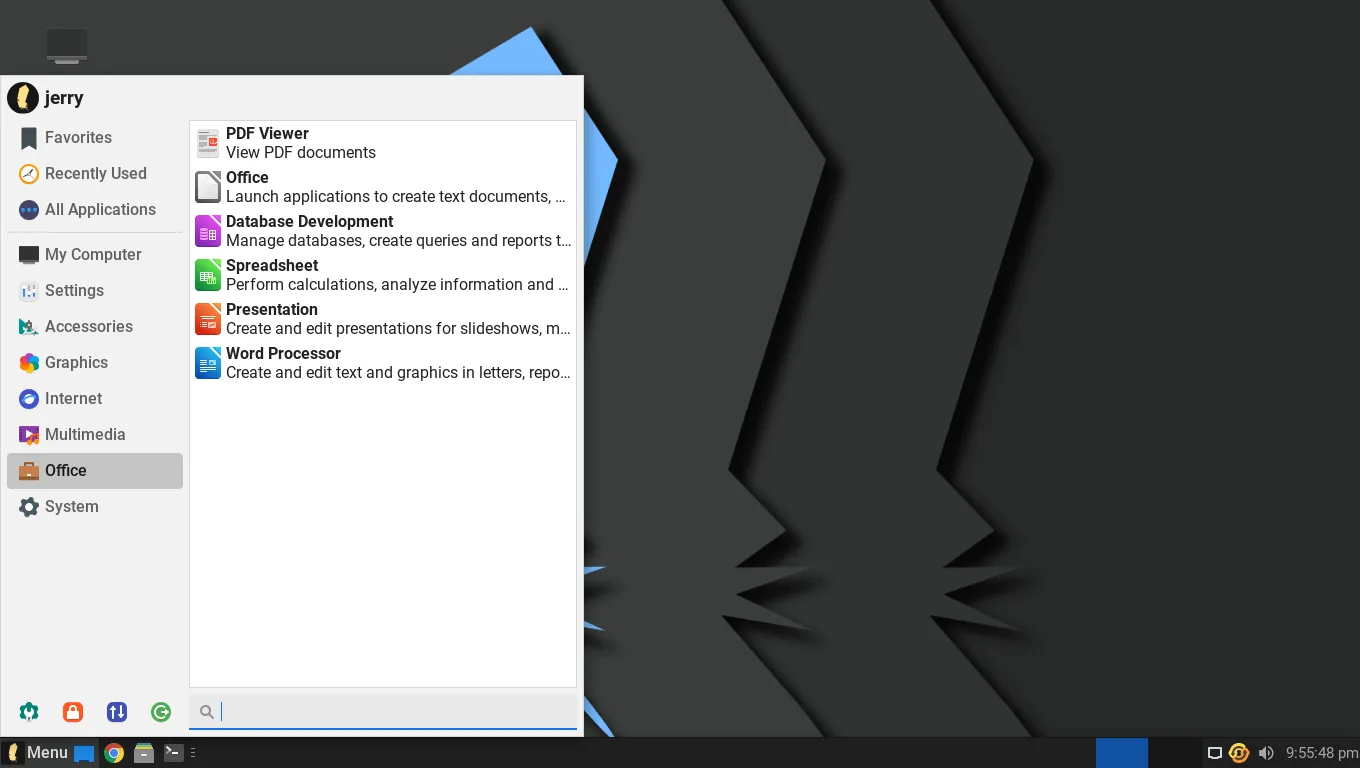
Linux Lite uses the Xfce desktop, dressed with Papirus icons, the Roboto font and a clean, modern theme. The layout is deliberately close to Windows: a bottom taskbar, a start menu, desktop icons that work out of the box, and a system tray.
Xfce is what you see from the first boot. It is a light desktop that stays out of your way and leaves your computer's memory for your applications.
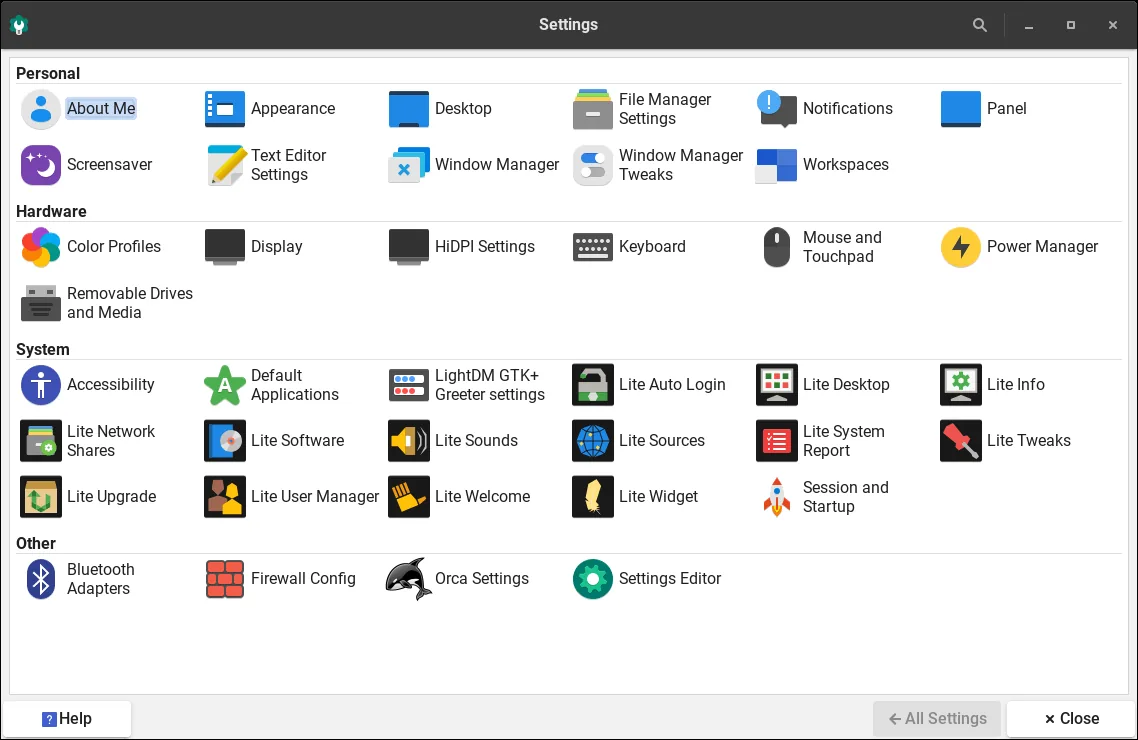
Xfce is also easy to make your own. You can move panels, add widgets, change window behaviour and set keyboard shortcuts without editing configuration files. The desktop stays light while doing all of this, so it looks familiar and polished without slowing the machine down.
If you have ever used Windows, you already know how to use this desktop. The start menu holds your applications, the taskbar shows what is open, and the system tray holds the clock, the volume and the network.
System Requirements: Will It Run on Your Computer?
These are the current official minimum requirements for Linux Lite:
| Requirement | Minimum |
|---|---|
| Processor | 1.5 GHz dual-core CPU |
| Memory (RAM) | 4 GB |
| Storage | 40 GB (HDD, SSD or NVMe) |
| Display | VGA, DVI, DP or HDMI at 1366 x 768 |
| Media | DVD drive or USB port for the ISO image |
Linux Lite is 64-bit only, and there is no official ARM version. A machine with 2 GB of RAM can run it in a pinch, but 4 GB is what makes multitasking comfortable. Machines with under 1 GB of RAM are not a good fit — lighter systems exist for those.
In independent testing on a 2014 laptop (Intel i5, 8 GB RAM, SSD), Linux Lite 8.0 used about 650 MB of RAM at idle, booted in about 18 seconds, and took about 12 GB of disk space after installation.
How to Try Linux Lite Without Installing Anything
You can try Linux Lite before you commit to it. Download the ISO file from the official Linux Lite site, write it to a USB stick with a tool like Rufus or Etcher, and boot your computer from the USB.
This starts a live session. The live session runs entirely from the USB stick and changes nothing on your hard drive. You can browse the web, open LibreOffice, and check that your Wi-Fi, sound and display all work.
If you like what you see, click "Install Linux Lite" on the live desktop. If you do not, shut the computer down, remove the USB stick, and your old system is exactly as it was. Trying it first is the safest way to decide.
Installing Linux Lite: The Short Version
Installing Linux Lite is straightforward, even if you have never installed Linux before. The whole process takes under 20 minutes, and under 10 minutes on an SSD.
First, back up your important files. Then boot from the USB stick and click "Install Linux Lite". Pick your language, timezone and keyboard layout. Choose how to use the disk: erase it, install alongside another operating system, or partition it manually.
Set your username and password, and choose whether to log in automatically. The installer copies the files, then reboots into your new system. After that, run Lite Updates to get the latest patches.
Before you install, disable Secure Boot in your computer's BIOS settings — Linux Lite does not support Secure Boot, and the installer will ask for it to be off.
Your First Hour with Linux Lite
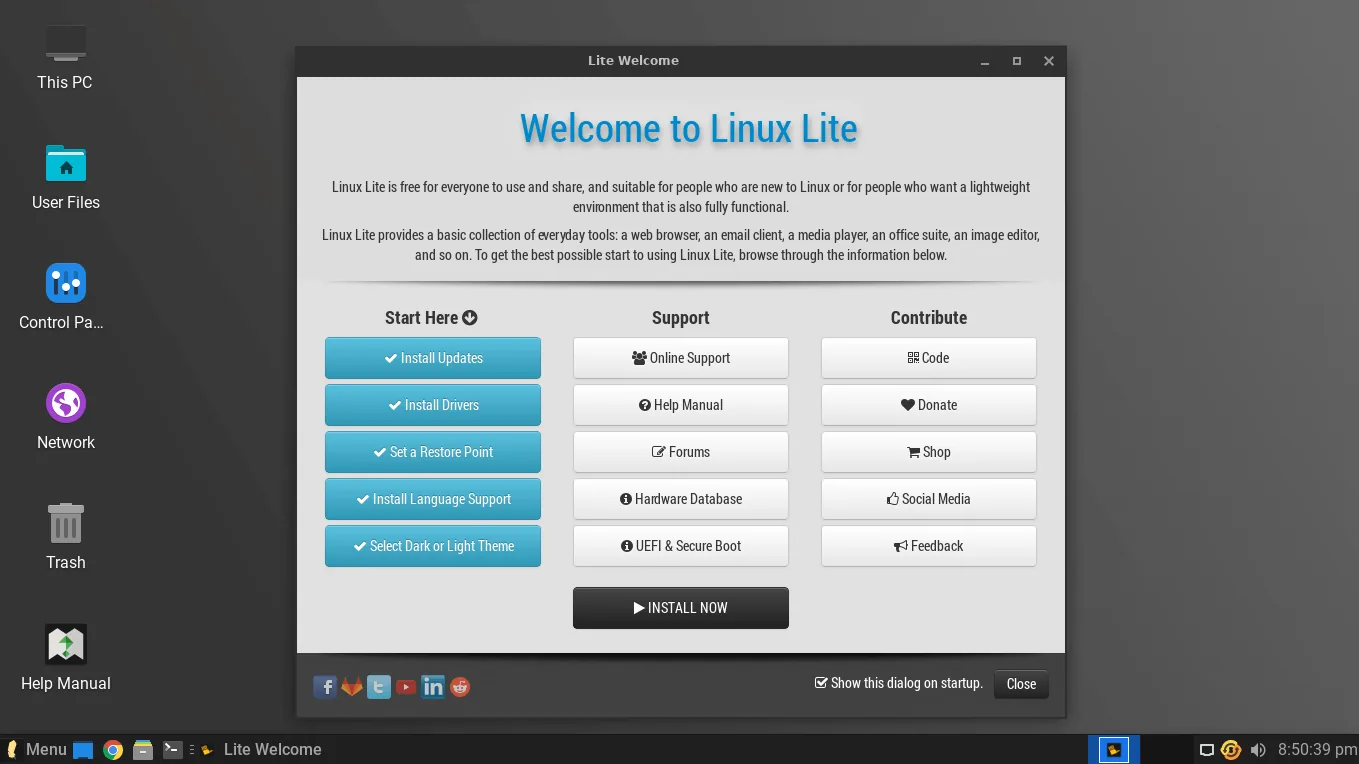
When Linux Lite starts for the first time, the Lite Welcome app opens and walks you through the first steps: install updates and drivers, then set up the rest of the system. It is a guided checklist, and it is the first thing reviewers tend to praise.
A Help Manual icon sits on the desktop and opens a local guide that covers every part of using Linux Lite. It is written for people who have never seen Linux before, which is why first-time users keep recommending it.
Day to day, everything is in the start menu and the taskbar, and the Help Manual explains each part in plain language.
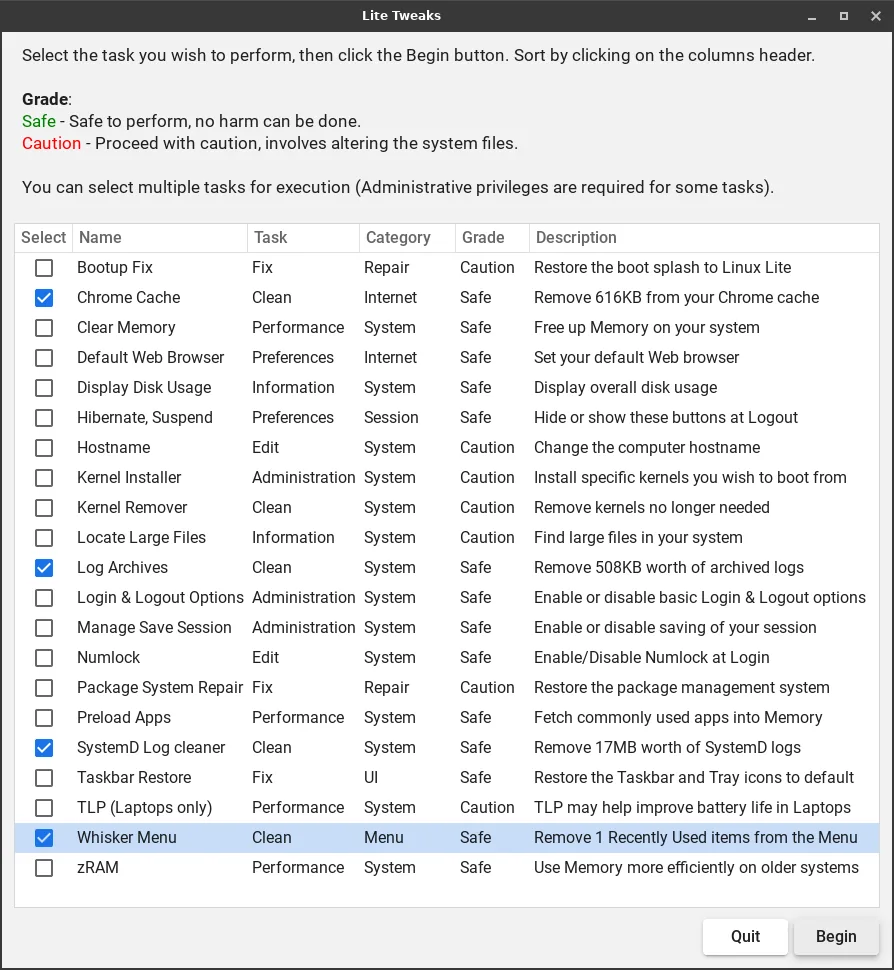
Your first jobs are simple. Run Lite Updates to patch the system. Open Lite Driver Manager if you need a graphics driver. Then open Lite Software and install anything else you want — a media player, a photo tool, or a game.
One safety habit matters from day one: the built-in firewall is off by default. Switch it on in the settings. It takes a minute, and it is the one security step Linux Lite leaves to you.
Getting Help: Community and Support
Linux Lite has an active, welcoming community. Its forums have been viewed more than 91 million times, and there is a Discord server for real-time help.
If something goes wrong, the forums are the best place to ask. Describe your computer, what you were doing, and what happened. Because Linux Lite is based on Ubuntu LTS, most Ubuntu answers also apply here.
Is Linux Lite Right for You?
Linux Lite is right for you if you want a free, fast desktop on an old computer, a familiar Windows-like layout, and a system that is ready to use without a learning curve. It is right for a first Linux install, a school lab, or a second machine.
It is not the lightest Linux distribution in the world. A 2 GB netbook or a 2009 laptop will feel tighter here than on an even lighter system. It has no official ARM version, and power users may find it "too simple" out of the box.
For everyone else, especially a Windows user with an old PC, it is one of the easiest ways into Linux. Download it free, try it from a USB stick, and keep your old PC running.
FAQs
Is Linux Lite good for beginners?
Yes. It was designed for people who have never used Linux: a familiar layout, a guided Welcome app, a full set of applications, and documentation written in plain language.
Is Linux Lite free?
Yes. It is free and open source, free to download, free to use, and free to share. There are no accounts or subscriptions.
Is Linux Lite good for very old hardware?
Yes — it is made for it. A 12-year-old laptop runs well on it, and it is at its best on machines with 4 GB of RAM. On 2 GB it works but feels tight.
Can I try Linux Lite without installing it?
Yes. Boot from a USB stick and use the live session. It changes nothing on your hard drive, and you can install from the live desktop if you like it.
Does Linux Lite support Secure Boot?
No. Secure Boot must be disabled in your computer's BIOS settings before you install Linux Lite.
Can I use Linux Lite for professional work?
Yes. It comes with LibreOffice, Thunderbird, GIMP and VLC already installed, and it can run almost all software that runs on Linux.
Conclusion
Linux Lite is Linux made simple. It takes the stability of Ubuntu LTS, adds a light and familiar Xfce desktop, fills it with the applications most people need, and wraps it in tools that remove the usual friction for beginners.
You do not need to be technical to use it. Download it free from the official Linux Lite site, try it from a USB stick, and see for yourself whether your old computer has years of life left in it. For most old laptops, the answer is yes.