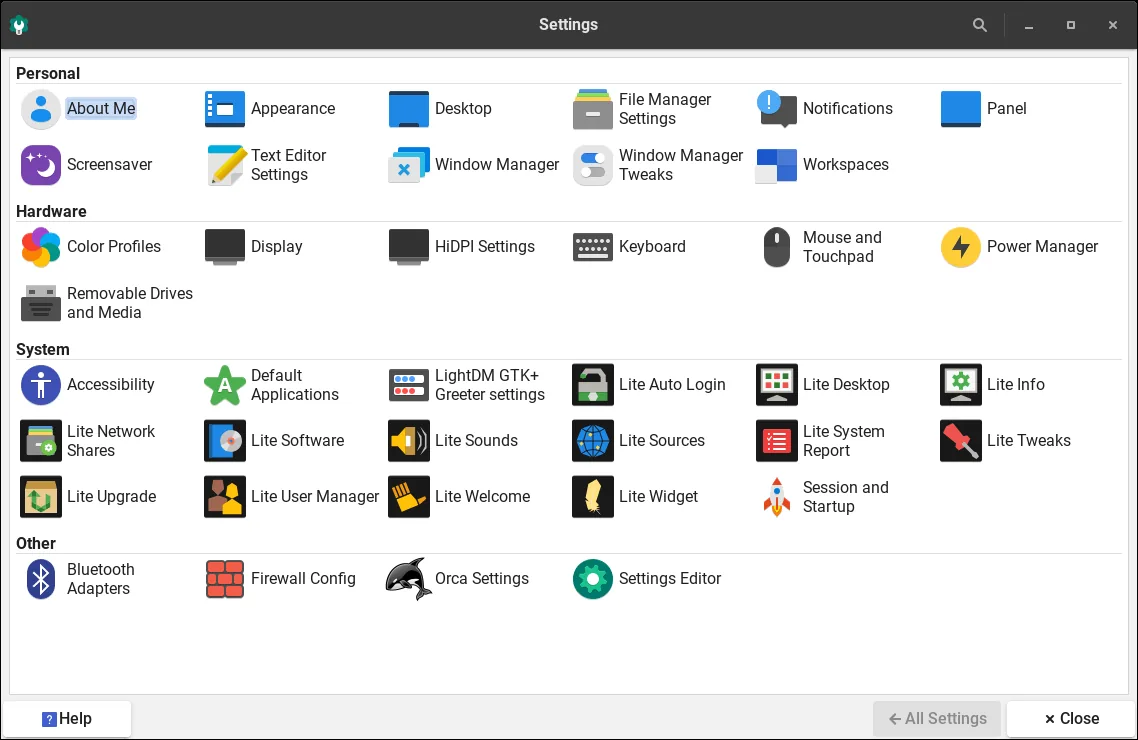
The Lite tools are what set Linux Lite apart from other lightweight distributions. They are small, single-purpose applications that do common jobs with one click — no terminal needed.
Other distributions expect you to learn commands for updating, installing software, finding drivers and cleaning the system. Linux Lite gives you a friendly window with a big button for each job. This guide explains every Lite tool, what it does, and when to use it.
If you are learning how to use Linux Lite, the tools are the best place to start. Each one handles a single job in its own window, and none of them needs terminal knowledge.
Lite Welcome: Your First Stop
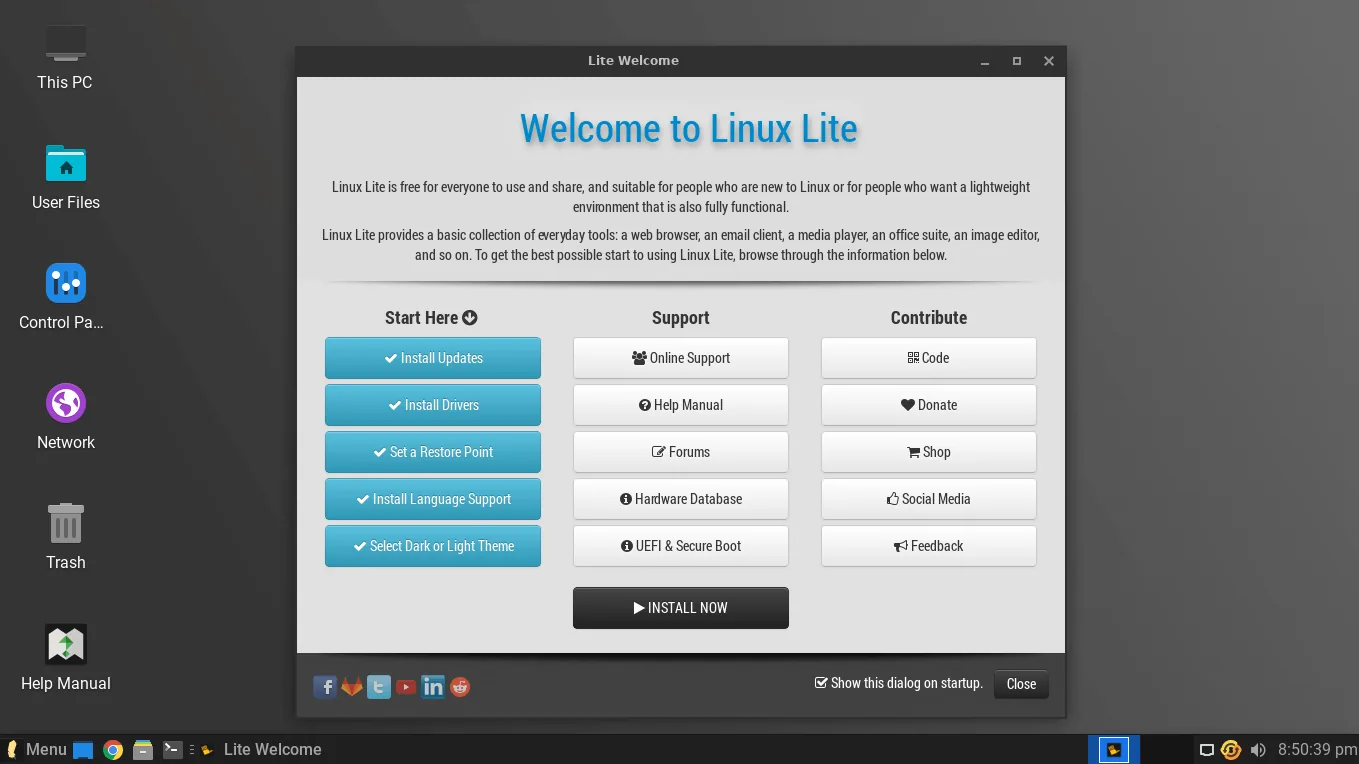
Lite Welcome opens automatically the first time Linux Lite starts. It is a guided checklist that walks you through the first steps: install updates, install drivers, and set up the rest of the system.
The welcome screen is the first thing you see after installing, and every step on it takes one click.
Reviewers consistently praise it as the first thing that makes Linux Lite feel different. Instead of dropping you on an empty desktop, it tells you what to do next, in order.
You can open Lite Welcome again any time from the menu. It is the safest place to start after a fresh install, and it is the first tool to show a new user.
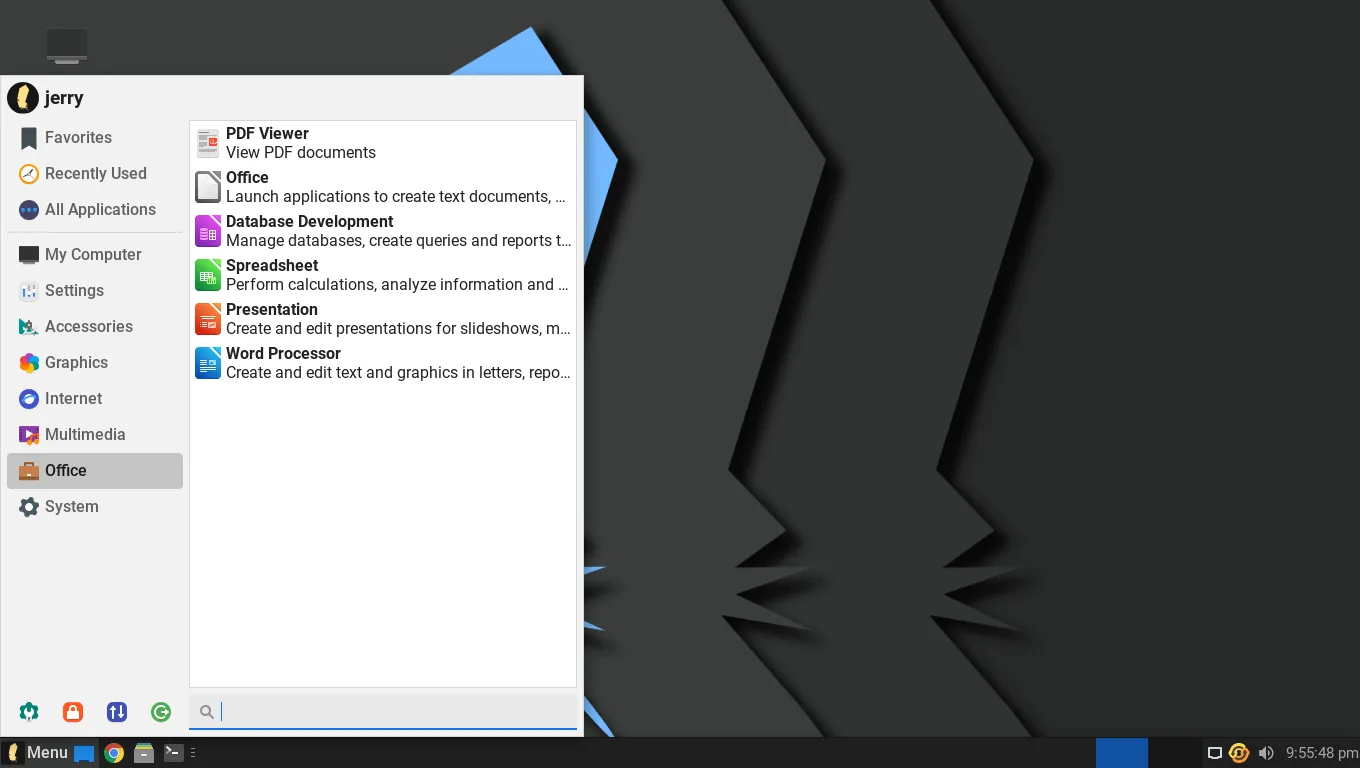
Every Lite tool is listed in the Xfce menu, the same menu you use to launch applications.
Lite Software: The App Store
Lite Software replaces the Synaptic Package Manager with a friendlier app store interface. Browse by category, click Install, enter your password, and the application is installed.
It covers the applications most people look for: web browsers, office tools, media players, graphics software, games and utilities. It also includes a Snap package filter, so you know what you are installing.
Linux Lite ships DEB packages first and deliberately leaves out Snap and Flatpak. That means the applications in Lite Software start fast and do not carry duplicate runtimes. If you need something that is not listed, the Ubuntu repositories behind it hold thousands more applications.
Lite Updates: One-Click Patching
Lite Updates keeps the system patched without the terminal. Open it, and it checks for available updates from Ubuntu LTS and from the Linux Lite project, then installs them with one click.
Because Linux Lite is based on Ubuntu LTS, updates are mostly security fixes and tested application updates — not surprises. Run Lite Updates after installing, and then whenever it tells you updates are waiting.
Before a major change, such as an upgrade to a new series, make a backup first. Timeshift is pre-installed for exactly that job, and it can restore your system if an update ever goes wrong.
Lite Tweaks: One-Click Cleanup
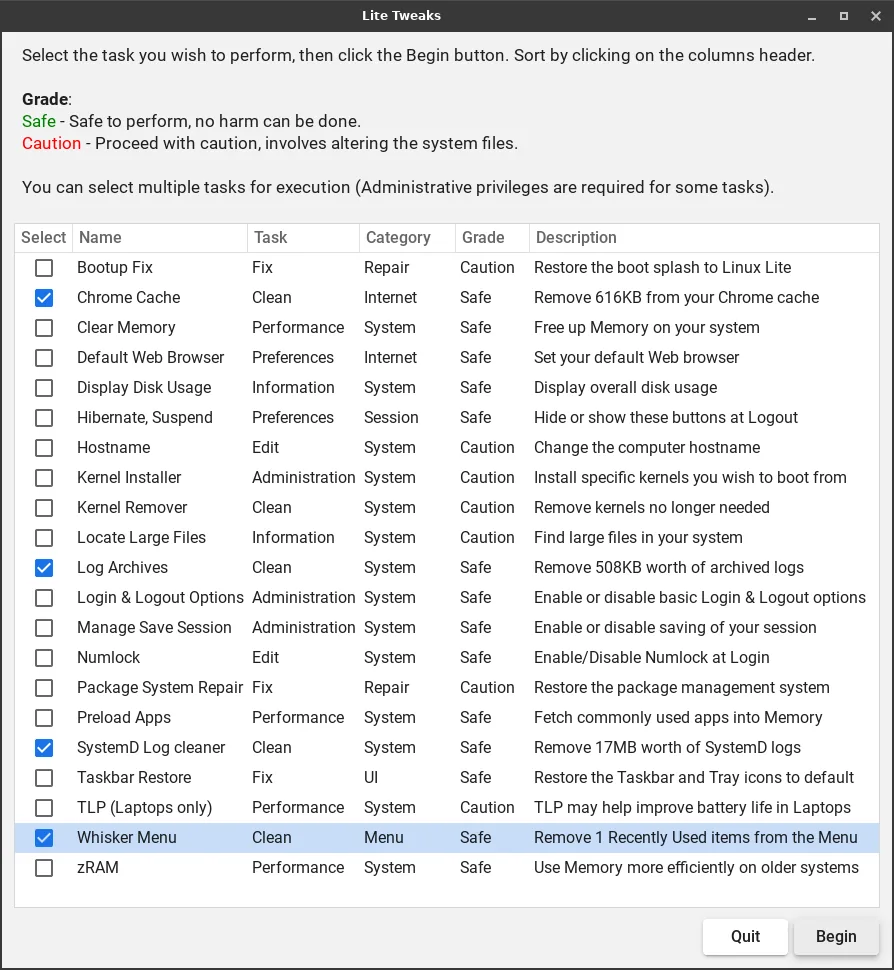
Lite Tweaks is a one-click cleanup tool. It clears caches, removes old package files, and frees disk space. Over months of use, a system collects temporary files and leftover update packages; Lite Tweaks sweeps them away safely.
It is the tool to reach for when the disk starts feeling full, or when the system feels slower than it used to. It only removes files that are safe to remove — it will not delete your documents, photos or settings.
Run it every few weeks, or whenever you notice the disk filling up. It takes less than a minute.
Lite Driver Manager: The Right Driver, One Click
Lite Driver Manager detects your graphics card, tells you whether the free or proprietary driver is recommended, and installs it with one click.
Graphics drivers are one of the few things that can genuinely confuse a beginner. The wrong driver can mean a black screen or poor performance; the right one means smooth video and working 3D. Lite Driver Manager removes the guesswork.
Version 8.2 improved driver switching and added safeguards against recommending incompatible NVIDIA drivers for older graphics cards. It also includes updated NVIDIA kernel patches so proprietary drivers work on newer mainline kernels.
If your display, Wi-Fi or sound is not working after installation, Lite Driver Manager is one of the first places to look — alongside Lite Updates.
Lite Kernel Manager: Switch Kernels and Benchmark
Lite Kernel Manager lets you switch between kernels, benchmark your system, and upload scores to the community database. It is the most powerful of the Lite tools, and the one that changed most in version 8.2.
The Two Kernels in Linux Lite 8.2
Linux Lite 8.2 ships two custom Linux 7.3 kernel variants, built from upstream sources with selected CachyOS patches. The default linuxlite kernel is for everyday desktop use, with security mitigations enabled and dynamic preemption to balance responsiveness and throughput.
The optional linuxlite-gaming variant targets gaming and latency-sensitive workloads. It uses full preemption, the BORE scheduler, and disabled security mitigations. Both variants keep the EEVDF scheduler, with BORE available only in the gaming version.
How to Install a New Kernel on Linux Lite
Installing a new kernel is a job for Lite Kernel Manager, not the terminal. Open it from the menu, and it lists the kernels available for your system.
Pick the kernel you want — the desktop kernel for everyday use, or the gaming kernel if you play games or do audio work. The tool installs it, and you choose which kernel to boot from the boot menu when the computer starts. The old kernel stays installed, so you can switch back if anything goes wrong.
The built-in benchmarking tool compares frame rates and input lag on your own hardware, so you can see for yourself whether the gaming kernel helps. You can also upload your scores to the community database and compare them with other users' machines.
One Important Warning
When you upgrade from Linux Lite 8.0 to 8.2, the upgrade does not automatically replace your kernel. If you want Linux 7.3, you must switch to it separately through Lite Kernel Manager. The upgrade tool will not do it for you, and the desktop kernel you already have keeps working until you decide to change it.
Version 8.2 also improved the Kernel Manager itself: better interface readability, an option to export installation logs, and better handling of failures with third-party DKMS modules.
Lite Game Center: Games in One Click
Lite Game Center installs Steam, Lutris, Proton and Wine in one click, plus controller support. On most distributions you would need to add each of those yourself, hunt down 32-bit libraries, and troubleshoot Wine dependencies. Linux Lite removes that barrier.
Version 8.2 improved the Game Center further, adding support for installing the 32-bit graphics libraries that some Windows games need when running through Wine-GE.
The Game Center is covered in depth in the MyAI and Gaming guide, including the gaming kernel and what to expect from games on old hardware.
Lite Share Folder: Sharing Without the Terminal
Lite Share Folder lets you right-click any folder and share it across your network, handling the SMB configuration automatically. Sharing a folder on a home network usually means editing configuration files; this tool does it with a click.
It is a small tool, but it is the kind of thing that shows what the Lite tools are for: taking a job that normally needs the terminal and turning it into a button.
Lite Terminal: A Terminal That Helps
Lite Terminal is a custom-built terminal written in Vala. It has predictive auto-complete, a title bar that turns red when you enter sudo, and clean font rendering using the JetBrainsMono Nerd Font.
Most beginners will never need it, because the other Lite tools cover the common jobs. But when you do need a terminal, Lite Terminal makes it friendlier: it suggests commands as you type, and the red title bar warns you when you are running something with administrator rights.
MyAI: The Local AI Assistant
MyAI is a private, local AI assistant that runs entirely on your own computer. It suggests a model based on your hardware, runs in a browser tab through a local Ollama instance, and keeps your conversation history on disk. There is no cloud account, no telemetry, and nothing leaves your machine.
It is covered in depth in the MyAI and Gaming guide. If you do not want it, you can remove it completely with sudo apt purge myai and delete the Firefox bookmark.
Which Tool Do I Need?
| Job | Tool |
|---|---|
| Just installed, what now? | Lite Welcome |
| Install or remove an app | Lite Software |
| Install security updates | Lite Updates |
| Free disk space, clean caches | Lite Tweaks |
| Graphics driver not right | Lite Driver Manager |
| Switch kernel, benchmark | Lite Kernel Manager |
| Install Steam and games | Lite Game Center |
| Share a folder on the network | Lite Share Folder |
| Run a command | Lite Terminal |
| Ask the local AI assistant | MyAI |
FAQs
Do I need the terminal to use Linux Lite?
No. The Lite tools cover updating, installing software, drivers, cleanup, kernel switching and sharing. The terminal is there if you want it, but beginners can go a long time without opening it.
What is the difference between Lite Software and the Ubuntu software store?
Lite Software is Linux Lite's own app store. It is simpler than Ubuntu's store, lists the applications most people look for, and installs DEB packages rather than Snap packages.
How do I update Linux Lite?
Open Lite Updates and click to install the available updates. For a move between series, such as 7.x to 8.x, use the Lite Upgrade tool — and back up with Timeshift first.
How do I install a new kernel on Linux Lite?
Use Lite Kernel Manager. Pick the kernel you want, install it, and choose it from the boot menu. Your old kernel stays installed so you can switch back.
Can I remove MyAI?
Yes. Run sudo apt purge myai and delete the Firefox bookmark, and it is gone completely.
Why is there no Lite tool for the firewall?
There is no dedicated Lite tool for it. Switch the built-in firewall on in the system settings — it is off by default, and turning it on is the one security step Linux Lite leaves to you.
Conclusion
The Lite tools are the reason Linux Lite feels easy. Each one takes a job that normally needs the terminal — updating, installing software, finding drivers, switching kernels, sharing folders — and turns it into a window with a button.
You do not need to learn them all at once. Start with Lite Welcome, use Lite Updates and Lite Software in your first week, and reach for the rest when you need them. That is how Linux Lite is meant to work: the tools stay out of the way until the moment you need them, and then they do the job in one click.