The short answer is yes — Linux Lite supports UEFI, and has done since version 5.0. But there is a second part to the answer that catches people out: Secure Boot must be switched off before you install Linux Lite. This guide explains what UEFI and Secure Boot are, how Linux Lite's support changed over the years, and exactly what to do before you install.
Before you install, check that your machine meets the hardware requirements: the latest version, 8.2, needs a 64-bit PC, and there is no 32-bit version of Linux Lite.
What Are UEFI and Secure Boot?
UEFI is the modern replacement for the old BIOS. It is the small piece of firmware that starts your computer and hands control to the operating system. Almost every PC sold in the last ten years uses UEFI instead of BIOS. When you press a key at startup and see a setup screen with a mouse pointer and menus, that is UEFI.
Secure Boot is a feature inside UEFI. It checks that the software starting your computer is signed with a trusted key, and refuses to start anything that is not. It was designed to block malware that tries to infect the boot process. Windows uses it, and most big Linux distributions support it.
The two are related but they are not the same thing. A PC can use UEFI with Secure Boot on, or with Secure Boot off. Linux Lite works with UEFI. It does not work with Secure Boot switched on.
That is the one firmware rule to remember: UEFI is fine, but Secure Boot must be off.
Linux Lite and UEFI: How Support Changed
Early versions of Linux Lite did not support UEFI at all. Reviewers noticed. The Everyday Linux User reviews of versions 2.6 and 3.0 both criticised the lack of UEFI support, and the 3.0 review called it the main weakness of an otherwise friendly system. At the time, installing on a UEFI-only machine meant switching the firmware to legacy BIOS mode first.
That changed with Linux Lite 5.0, released in 2020. Version 5.0 added UEFI support out of the box, and the release coverage from BetaNews and It's FOSS both listed it as one of the major improvements. From 5.0 onwards, Linux Lite installs and boots on UEFI machines normally, with the standard GPT partition layout and an EFI system partition.
Secure Boot is a different story. Linux Lite has never supported it. The project's kernels and bootloaders are not signed with the keys Secure Boot requires, so a machine with Secure Boot on will refuse to start the Linux Lite installer. The install guides all say the same thing: disable Secure Boot first. The 8.0 install guide from LinuxForDevices lists it as a step before installation, and the vs-Lubuntu comparison on FOSSLinux notes it as one of the real differences between the two distros — Lubuntu supports Secure Boot, Linux Lite does not.
Why Secure Boot Must Be Off
Secure Boot checks signatures. When your PC starts, the firmware checks that the bootloader is signed by a key it trusts. Ubuntu and Lubuntu ship a signed bootloader, so they pass the check. Linux Lite does not ship one, so the check fails and the machine refuses to boot the installer.
This is not a bug and it is not something you can fix by changing a setting inside Linux Lite. It is a deliberate trade-off. Signing a bootloader means paying for keys and maintaining a signing process, and the Linux Lite project has never done that. Switching Secure Boot off in the firmware is the project's own recommended answer, and it is what every install guide tells you to do.
Switching it off does not make your computer unsafe in any practical sense for a home user. Secure Boot protects the boot process; your firewall, your updates and your own habits protect everything else. Millions of Linux users run with Secure Boot off.
How to Disable Secure Boot
The exact steps vary by manufacturer, but the pattern is the same on almost every PC.
Step 1: Enter the firmware setup
Restart the computer and press the setup key as soon as it starts. Common keys are Delete, F2, F10 or Escape. Some laptops use F12 for a boot menu first, from which you pick the setup option. If Windows is installed, you can also reach it from Settings, then Recovery, then Advanced startup.
Step 2: Find the Secure Boot setting
Look under a tab called Security, Boot or Authentication. The setting is usually labelled "Secure Boot". On some machines it is greyed out until you set a supervisor password first — if so, set a temporary password, change the setting, and remove the password afterwards if you like.
Step 3: Set it to Disabled
Change Secure Boot to Disabled. While you are there, check that the boot mode is UEFI, not Legacy or CSM, unless you have a specific reason to use legacy mode. Save the changes and exit. The machine will restart.
Step 4: Boot the Linux Lite USB
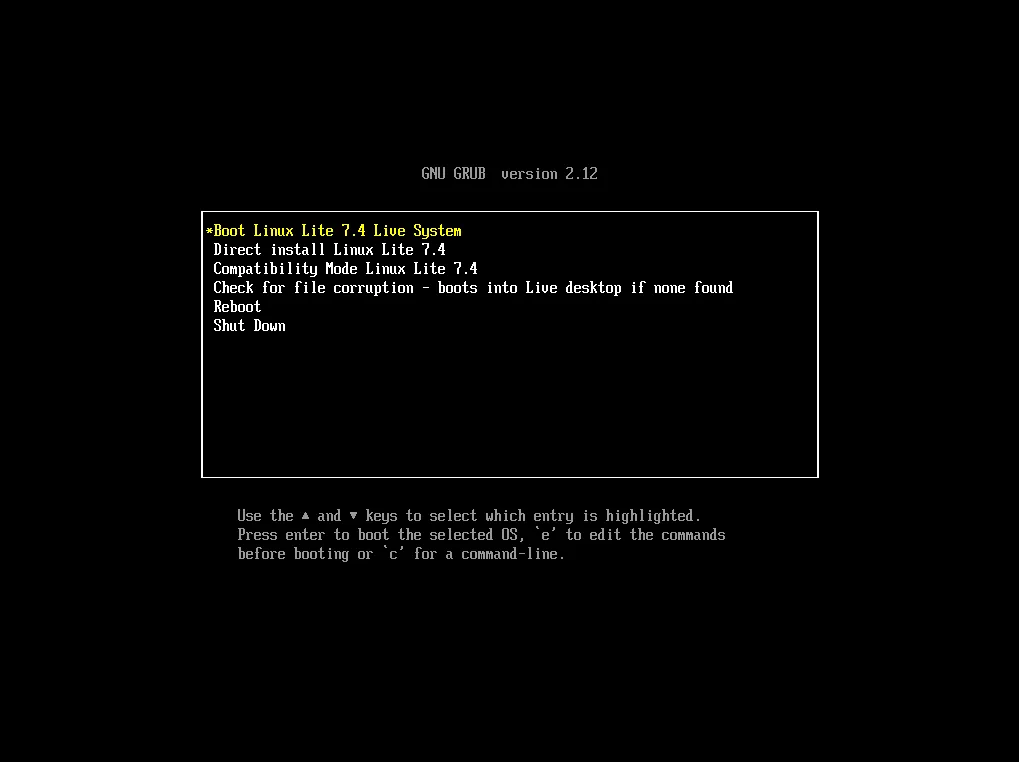
With Secure Boot off, the Linux Lite USB stick will boot normally. If it still does not appear in the boot menu, check that the USB was written correctly and that the boot menu is showing UEFI entries, not only legacy ones.
How to Check Whether Your PC Uses UEFI or Legacy BIOS
It helps to know what you are dealing with before you start.
On Windows, press Windows plus R, type msinfo32, and look for "BIOS Mode". It will say UEFI or Legacy. On a Linux live session, open a terminal and check whether the folder /sys/firmware/efi exists. If it does, the machine booted in UEFI mode. If it does not, the machine booted in legacy mode.
If your machine is from 2012 or earlier, it may be BIOS-only. Linux Lite installs on those too — the installer handles both. The Secure Boot question only arises on UEFI machines.
Installing Linux Lite on a UEFI PC
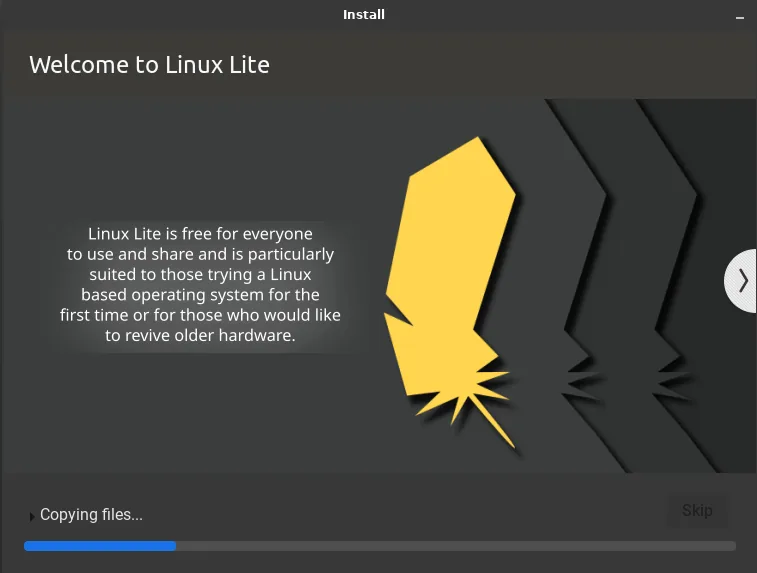
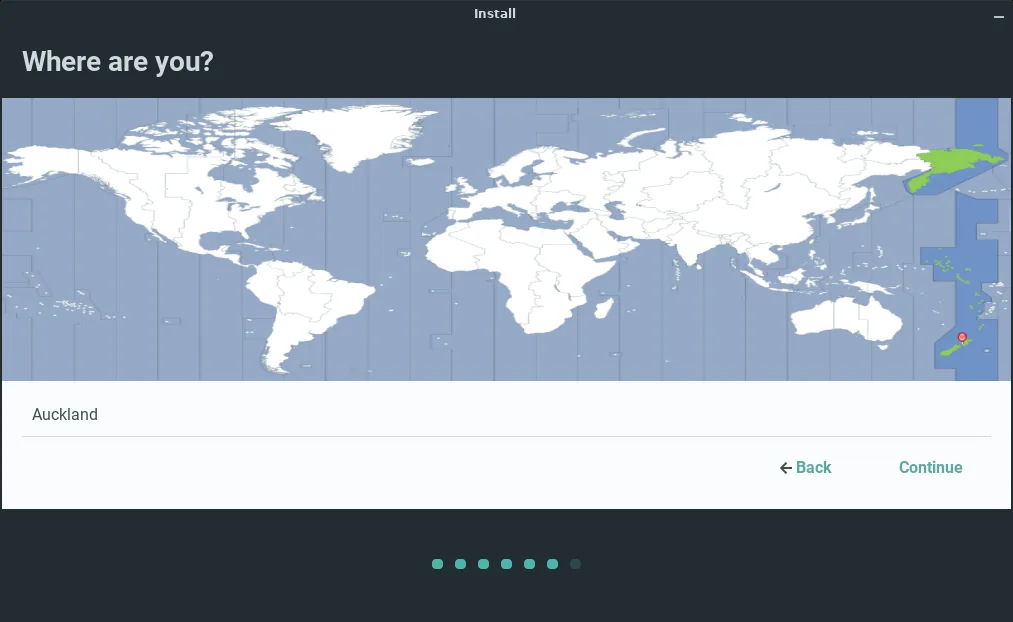
Once Secure Boot is off, the install itself is the same as on any other machine. Boot from the USB stick in UEFI mode, try the live session, and click Install Linux Lite.
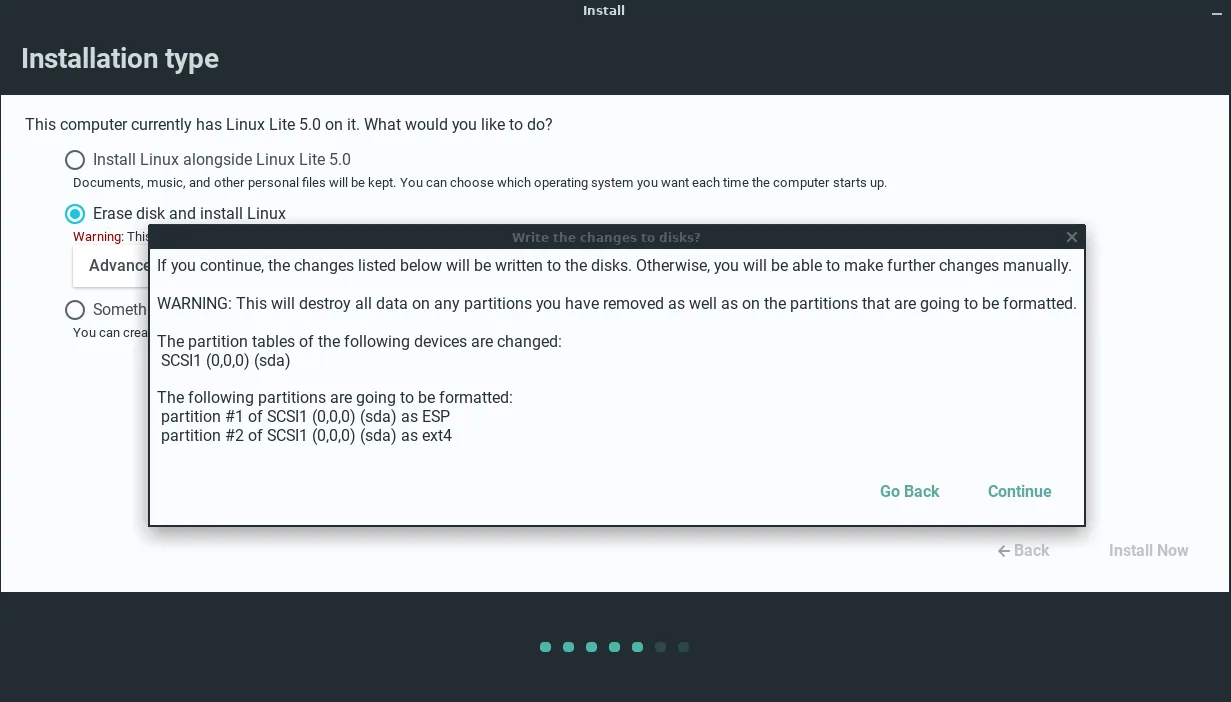
The installer will create an EFI system partition if one does not already exist, and it will set up the boot entries for you. If you are installing alongside Windows, pick the "alongside" option and the installer will shrink Windows and add Linux Lite to the boot menu. Windows will keep working, and you will choose between the two each time the machine starts.
One thing to watch: some machines have a "fast boot" option in the firmware that skips the USB stick. If the USB does not show up, switch fast boot off as well.
Dual-Boot and Secure Boot
If you dual-boot Linux Lite with Windows, Secure Boot stays off for both. Windows will still start normally — it does not require Secure Boot, even though it prefers it. Some Windows features tied to hardware security may complain, but ordinary Windows use is unaffected.
Do not switch Secure Boot back on after installing Linux Lite. The machine would refuse to boot Linux Lite, and you would be back in the firmware setup switching it off again.
Common UEFI Problems and Fixes
The USB stick does not appear in the boot menu. Rewrite the stick with Rufus or Etcher, and make sure the tool wrote it in UEFI mode. Try a different USB port — some machines only boot from USB 2.0 ports.
The installer starts but the disk is not found. This is usually a storage setting, not a UEFI problem. In the firmware, change the storage mode from RAID or Intel RST to AHCI. Back up first — changing this can affect a Windows install.
The machine boots straight into Windows. The boot order still has Windows first. Go into the firmware setup and move the Linux Lite entry above Windows, or use the one-time boot menu key at startup.
Secure Boot option is greyed out. Set a supervisor or administrator password in the firmware first. That unlocks the setting on many laptops.
FAQs
Does Linux Lite support UEFI?
Yes. Linux Lite has supported UEFI since version 5.0, released in 2020. The current version 8.2 installs and boots on UEFI machines normally.
Does Linux Lite support Secure Boot?
No. Secure Boot must be switched off in the firmware before you install Linux Lite. The project's kernels are not signed for Secure Boot.
How do I turn off Secure Boot for Linux Lite?
Restart the PC, enter the firmware setup with Delete, F2 or Escape, find Secure Boot under Security or Boot, set it to Disabled, save and exit.
Can I dual-boot Linux Lite with Windows 11 if Secure Boot is off?
Yes. Windows 11 runs with Secure Boot off, and Linux Lite installs alongside it. Secure Boot must stay off while Linux Lite is installed.
Did old versions of Linux Lite support UEFI?
No. Versions 2.6 and 3.0 had no UEFI support, and reviewers criticised that at the time. UEFI support arrived with version 5.0 in 2020.
Is it safe to switch off Secure Boot?
For a home user, yes in practical terms. Secure Boot guards the boot process only. Keep the system updated, switch the built-in firewall on, and your machine stays protected where it matters.
Conclusion
Linux Lite supports UEFI, and has done since version 5.0, but it does not support Secure Boot. Before you install, restart the PC, open the firmware setup, switch Secure Boot off, and make sure the boot mode is UEFI. After that, the install is the same as on any other machine, and the USB stick will boot without trouble. Leave Secure Boot off afterwards, and if the USB does not appear or the disk is not found, check the boot order, fast boot and the storage mode. Five minutes in the firmware setup is all it takes.